actions
GitHub Actions Overview
This document is a high-level overview of GitHub Actions. It is not intended to be a comprehensive guide to the platform, but rather a starting point for understanding the basics.
- GitHub Actions Overview
- Intro to Concepts
- How to Trigger/Initiate Workflow Runs
- How to Structure/Manage Jobs in the Workflow
- How to Use and Create Actions (Marketplace)
- How to Organize, Share, and Scale Workflows
- Artifacts
- Caching
- Secrets
- How to Create and Manage Runners
- How to Govern Usage
- How to Observe What’s Going on with CI/CD
- How to Manage Cost and Billing
- How to Migrate
- Understanding Platform Limits
Intro to Concepts
There are a few concepts that are important to understand when working with GitHub Actions.
Definitions
Some basic definitions to get us started…
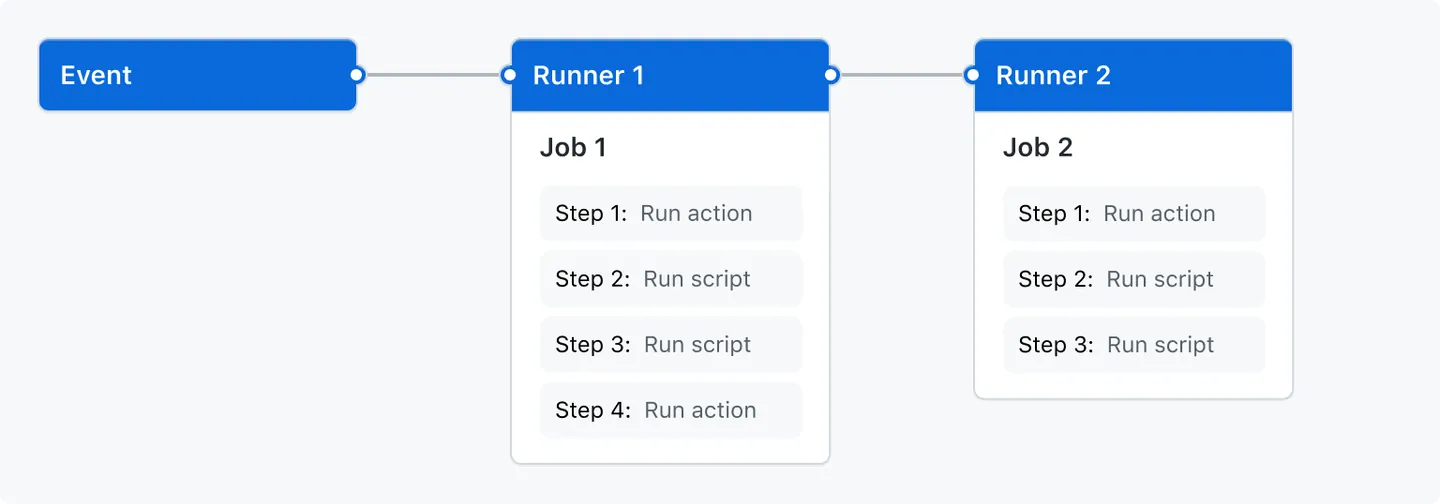
Workflow
A workflow is a configurable automated process that will run one or more jobs. Workflows are defined by a YAML file checked in to your repository in the .github/workflows directory. A repository can have multiple workflows, each of which can perform a different set of tasks.
Events
An event is a specific activity in a repository that triggers a workflow run. It could be triggered by an event in your repository, or they can be triggered manually, or at a defined schedule.
Jobs
A job is a set of steps in a workflow that is executed on the same runner. Each step is either a shell script that will be executed, or an action that will be run. Steps are executed in order and are dependent on each other. Since each step is executed on the same runner, you can share data from one step to another.
Steps / Actions
A step can be a script that will be executed or a GitHub action.
Runners
A runner is a server that runs your workflows when they’re triggered. Each runner can run a single job at a time.
- GHR: GitHub-Hosted Runner
- SHR: Self-Hosted Runner
Action: Marketplace Action, Custom Actions (Composite Action)
An action is a custom application for the GitHub Actions platform that performs a complex but frequently repeated task. Use an action to help reduce the amount of repetitive code that you write in your workflow files.
An action can pull your git repository from GitHub, set up the correct toolchain for your build environment, or set up the authentication to your cloud provider.
You can write your own actions, or you can find actions to use in your workflows in the GitHub Marketplace.
For more information, see Creating actions.
Runner: GitHub-Hosted Runner vs. Self-Hosted Runner
You can run your jobs on GitHub Hosted compute or you can host your own Self Hosted runners.
The standard runners GitHub offers are:
ubuntu-latestwindows-latestmacos-latest
There are also Larger runners for more demanding use cases.
Cost
Actions running on standard GitHub-hosted runners are free for public repositories and self-hosted runners are free for all repositories.
For private repositories, GitHub charges based on a per-minute rate. The cost is simply the number of minutes your job runs multiplied by the per-minute rate.
[!TIP] GitHub always rounds up the time that a job runs to the nearest minute. For example, if your job runs for 61 seconds, GitHub will charge you for 2 minutes.
You are entitled to a certain amount of free minutes and storage based on your plan. If you exceed these limits, you will be charged for additional usage.
| Plan | Storage | Minutes (per month) |
|---|---|---|
| GitHub Team | 2 GB | 3,000 |
| GitHub Enterprise Cloud | 50 GB | 50,000 |
[!NOTE] These minutes are ONLY applicable to standard runners (not larger runners). The above values are for
ubuntu-latestrunners.windows-latestare 2x the cost (25k free)macos-latestare 10x the cost (5k free). Logs and job summaries do not count towards storage usage.

Autoscaling with self-hosted runners (ARC)
You can automatically increase or decrease the number of self-hosted runners in your environment in response to the webhook events you receive with a particular label.
The Developer Loop: Writing, Testing, Debugging
Writing a workflow file is as simple as creating a .yml file in the .github/workflows directory of your repository.
To test your workflow file you will push it to your repository and navigate to the Actions tab to see the status of your workflow run.
When the workflow run is complete you can view the logs of each step to see what happened.
GitHub CLI
The GitHub CLI brings GitHub to the terminal. It’s also preinstalled on all GitHub runners!
If you need to quickly perform a GitHub task this is the easiest way to do it!
Comment on an issue
```yml on: issues: types: - opened jobs: comment: runs-on: ubuntu-latest steps: - run: gh issue comment $ISSUE --body "Thank you for opening this issue!" env: GH_TOKEN: $ ISSUE: $ ```For the list of available extensions for the gh cli, see the topic gh-extension.
Install Manual Using GitHub CLI in workflows
VS Code extension
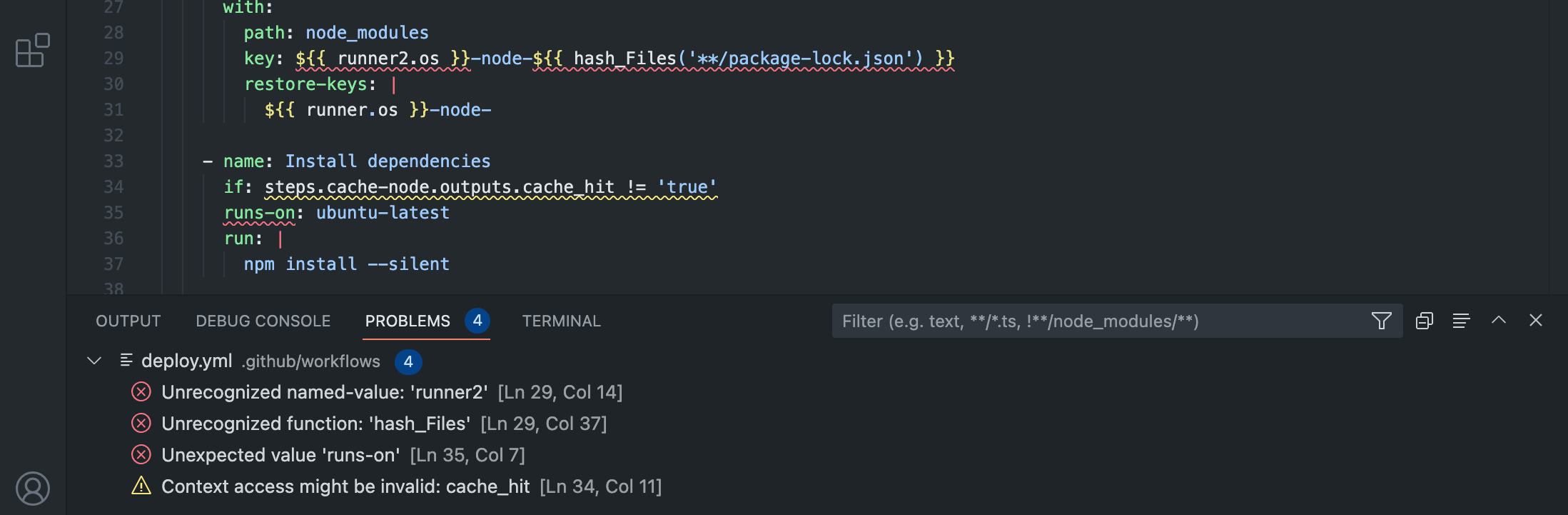
There is a VS Code extension that provides syntax highlighting, intellisense, and more! This is a must have when authoring workflows.
Copilot
GitHub Copilot is an AI pair programmer that helps you write code faster and with less effort. It can be incredibly useful when writing GitHub Actions workflows. Leverage the completion or chat feature to get help with writing your workflows.
Actions Loves JavaScript
One of the most popular languages for writing actions is JavaScript. This is because it is easy to get started with and has a lot of community support.
GitHub Actions ToolKit
The GitHub Actions ToolKit provides a set of packages to make creating actions easier.
Github-script
This action makes it easy to quickly write a script in your workflow that uses the GitHub API and the workflow run context. The GitHub Actions Toolkit is pre-installed and available for use in the script you write.
Welcome a first-time contributor
```yml on: pull_request_target jobs: welcome: runs-on: ubuntu-latest steps: - uses: actions/github-script@v7 with: script: | // Get a list of all issues created by the PR opener // See: https://octokit.github.io/rest.js/#pagination const creator = context.payload.sender.login const opts = github.rest.issues.listForRepo.endpoint.merge({ ...context.issue, creator, state: 'all' }) const issues = await github.paginate(opts) for (const issue of issues) { if (issue.number === context.issue.number) { continue } if (issue.pull_request) { return // Creator is already a contributor. } } await github.rest.issues.createComment({ issue_number: context.issue.number, owner: context.repo.owner, repo: context.repo.repo, body: `**Welcome**, new contributor! Please make sure you've read our [contributing guide](CONTRIBUTING.md) and we look forward to reviewing your Pull request shortly ✨` }) ```Download data from a URL
```yml on: pull_request jobs: diff: runs-on: ubuntu-latest steps: - uses: actions/github-script@v7 with: script: | const diff_url = context.payload.pull_request.diff_url const result = await github.request(diff_url) console.log(result) ```Expressions
You can use expressions to programmatically set environment variables in workflow files and access contexts. An expression can be any combination of literal values, references to a context, or functions. You can combine literals, context references, and functions using operators. For more information about contexts, see “Contexts.”
Literals
You can use boolean, null, number, or string data types.
Example of literals
```yml env: myNull: $ myBoolean: $false myIntegerNumber: $711 myFloatNumber: $-9.2 myHexNumber: $ myExponentialNumber: $ myString: Mona the Octocat myStringInBraces: $It ```Operators
Example of operators
``` Operator Description ( ) Logical grouping [ ] Index . Property de-reference ! Not < Less than <= Less than or equal > Greater than >= Greater than or equal == Equal != Not equal && And || Or ```[!TIP] You can use a ternary operator
condition ? true : falseas$.
Functions
You can use functions to transform data or to perform operations.
Status Check functions
How to Trigger/Initiate Workflow Runs
You can configure your workflows to run when specific activity on GitHub happens, at a scheduled time, or when an event outside of GitHub occurs.
Event: Workflow Dispatch
Workflows triggered by workflow_dispatch and workflow_call access their inputs using the inputs context.
For workflows triggered by workflow_dispatch inputs are available in the github.event.inputs.
Example of on.workflow_dispatch.inputs
```yml on: workflow_dispatch: inputs: logLevel: description: 'Log level' required: true default: 'warning' type: choice options: - info - warning - debug tags: description: 'Test scenario tags' required: false type: boolean environment: description: 'Environment to run tests against' type: environment required: true jobs: log-the-inputs: runs-on: ubuntu-latest steps: - run: | echo "Log level: $LEVEL" echo "Tags: $TAGS" echo "Environment: $ENVIRONMENT" env: LEVEL: $ TAGS: $ ENVIRONMENT: $ ```Event: Workflow Call
Workflows triggered by workflow_call access their inputs using the inputs context.
Example of on.workflow_call.outputs
```yml on: workflow_call: # Map the workflow outputs to job outputs outputs: workflow_output1: description: "The first job output" value: $ workflow_output2: description: "The second job output" value: $ ```Event: Workflow Run
The workflow_run event allows you to execute a workflow based on execution or completion of another workflow.
Running a workflow based on the conclusion of another workflow
```yml on: workflow_run: workflows: [Build] types: [completed] jobs: on-success: runs-on: ubuntu-latest if: $ steps: - run: echo 'The triggering workflow passed' on-failure: runs-on: ubuntu-latest if: $ steps: - run: echo 'The triggering workflow failed' ```Event: Schedule
The schedule event allows you to trigger a workflow at a scheduled time.
Running a workflow on a schedule
```yml on: schedule: ┌───────────── minute (0 - 59) │ ┌───────────── hour (0 - 23) │ │ ┌───────────── day of the month (1 - 31) │ │ │ ┌───────────── month (1 - 12 or JAN-DEC) │ │ │ │ ┌───────────── day of the week (0 - 6 or SUN-SAT) │ │ │ │ │ │ │ │ │ │ │ │ │ │ │ - cron: * * * * * ```Non-Core CI/CD Use Cases
Understand that there are many ways to use GitHub Actions beyond CI/CD. For example, you can use GitHub Actions to:
Concurrency: Order of Workflow Runs Based on When Trigger Happened
GitHub Actions also allows you to control the concurrency of workflow runs, so that you can ensure that only one run, one job, or one step runs at a time in a specific context.
[!NOTE] This is NOT a queueing system. If you have a lot of workflow runs that are waiting to run, they will be run in the order that they were triggered.
Example: Concurrency groups
```yml on: push: branches: - main concurrency: group: ci-$ cancel-in-progress: true ```Example: Using concurrency to cancel any in-progress job or run
```yml concurrency: group: $ cancel-in-progress: true ```You can make the concurrency group as specific as you want. For example, you could use the branch name, the branch name and the event type, or the branch name and the event type and the workflow name.
Re-running Workflows / Retries
You can re-run a workflow run from the Actions UI. This is useful if you want to re-run a failed workflow run, or if you want to re-run a successful workflow run.
Retrying a job programmatically is not officially supported but can be achieved using something like a marketplace action
How to Structure/Manage Jobs in the Workflow
Parallelization of Jobs
By default all jobs in a workflow run in parallel. You can control the order of jobs by specifying dependencies.
Matrices
A matrix strategy is a great way to run the same job multiple times with different inputs. This is useful if you want to run your tests on multiple versions of a language, or if you want to run your tests on multiple operating systems.
[!NOTE] The maximum number of jobs that can be used in a matrix strategy is 256.
Example of a matrix strategy
```yml jobs: example_matrix: strategy: matrix: version: [10, 12, 14] os: [ubuntu-latest, windows-latest] ```Ordering Jobs
You can define the order of the jobs using the needs keyword. This is useful if you want to run a job that depends on the output of another job.
Example of linking jobs
```yml jobs: job1: job2: needs: job1 job3: needs: [job1, job2] steps: - run: echo $ ```Job Timeouts
You can define a timeout for a job, and if the job takes longer than the timeout to run, the job will be cancelled.
The default timeout for a job is 6 hours or 360 minutes.
[!NOTE] The
GITHUB_TOKENexpires after the job finishes or 24 hours. This is a limiting factor for SHRs.
Running Jobs in Containers / Service Containers
Running in a container will not always be faster than running on a GHR. The time it takes to download the container image and start the container can be longer than the time it takes to start a job on a GHR.
Containers
Use jobs.<job_id>.container to create a container to run any steps in a job that don’t already specify a container.
Example of running a job within a container
```yml name: CI on: push: branches: [ main ] jobs: container-test-job: runs-on: ubuntu-latest container: image: node:18 env: NODE_ENV: development ports: - 80 volumes: - my_docker_volume:/volume_mount options: --cpus 1 steps: - name: Check for dockerenv file run: (ls /.dockerenv && echo Found dockerenv) || (echo No dockerenv) ```[!TIP] You can omit the
imagekeyword and use the short versioncontainer: node:18if you don’t need to specify parameters.
Service Containers
Service containers let you run a container parallel to your job. This can be helpful if your job needs to talk to a database, for example.
Example of using a service container
```yml name: Redis container example on: push jobs: # Label of the container job container-job: # Containers must run in Linux based operating systems runs-on: ubuntu-latest # Docker Hub image that `container-job` executes in container: node:16-bullseye # Service containers to run with `container-job` services: # Label used to access the service container redis: # Docker Hub image image: redis ```Authenticating with a Container Registry
Sometimes you will need to authenticate with a container registry to pull an image. You can use the credentials keyword to do this.
Example of authenticating with a container registry
```yml jobs: build: services: redis: # Docker Hub image image: redis ports: - 6379:6379 credentials: username: $ password: $ db: # Private registry image image: ghcr.io/octocat/testdb:latest credentials: username: $ password: $ ```Environments: Controls How/When a Job is Run Based on Protection Rules Set, Limits Branches, Scopes Secrets
You can create environments and secure those environments with deployment protection rules. A job that references an environment must follow any protection rules for the environment before running or accessing the environment’s secrets.
Scoping secrets to an environment is very powerful because of the controls it gives you. You can limit which branches can access the secrets, and you can leverage the environment protection rules to control when a job can access the secrets.
Environment Protection Rules
Deployment protection rules require specific conditions to pass before a job referencing the environment can proceed.
Required Reviewers
You can require that specific individuals or teams review a pull request before a job can proceed.
Wait timer
You can delay a job for a specific amount of time before it can proceed.
Branch restrictions
You can restrict which branches or tags can access the environment.
Admin bypass
You can allow or disallow repository administrators to bypass the protection rules.
Custom deployment protection rules
You can create custom deployment protection rules to gate deployments with third-party services.
Conditional Jobs/Steps
You can use the if keyword to conditionally run a job or step.
if: $
Example of conditional jobs
```yml name: example-workflow on: [push] jobs: production-deploy: if: github.repository == 'octo-org/octo-repo-prod' runs-on: ubuntu-latest steps: - uses: actions/checkout@v4 - uses: actions/setup-node@v4 with: node-version: '14' - run: npm install -g bats ```Permissions for Jobs
There is a default token called GITHUB_TOKEN which by default has the permissions defined in your repositories Actions settings.
It’s a good idea to limit permissions as much as possible by being explicit.
Example of limiting permissions
```yml jobs: stale: runs-on: ubuntu-latest permissions: issues: write pull-requests: write steps: - uses: actions/stale@v5 ```GitHub Apps
Using actions/create-github-app-token you can get a token for a GitHub App. This is better than using a PAT because you get more control and you don’t need to consume a license.
Example of using a GitHub App token
```yml name: Run tests on staging on: push: branches: - main jobs: hello-world: runs-on: ubuntu-latest steps: - uses: actions/create-github-app-token@v1 id: app-token with: app-id: $ private-key: $ - uses: ./actions/staging-tests with: token: $ ```How to Use and Create Actions (Marketplace)
What is an Action?
Actions are the building blocks that power your workflow. A workflow can contain one or more actions, either as individual steps or as part of an action group. An action is a reusable unit of code that can be used in multiple workflows. You can create your own actions, use actions created by the GitHub community, or use a combination of both.
Types of Actions
Javascript actions are the most popular and easiest to get started with, Docker containers package the environment with the GitHub Actions code, and Composite actions are a way to reuse actions in a more modular way.
There are three types of custom actions:
- JavaScript
- Docker (Not available on macOS or Windows runners)
- Composite
- About custom actions
Securing Usage of Actions
Creating Your Own Actions
You can create your own actions to use in your workflows. This is a great way to encapsulate logic that you want to reuse across multiple workflows.
Cool Actions to Look Out For: github-script, Anything by GitHub, Major Cloud Providers, Terraform, Docker
Here are some popular actions to get you started:
- GitHub Script
- Awesome Actions
- GitHub Authored Actions
- Azure Actions
- AWS Actions
- GCP Actions
- Build and Push Docker Images
How to Organize, Share, and Scale Workflows
One of the most powerful features of GitHub Actions is the ability to share workflows across repositories. This is useful if you have a common workflow that you want to use in multiple repositories.
Reusable Workflows
These are reusable jobs. They are a great way to share common logic across multiple workflows or just to organize your workflow into smaller, more manageable pieces.
Why?
- Easier to maintain
- Create workflows more quickly
- Avoid duplication. DRY(don’t repeat yourself).
- Build consistently across multiple, dozens, or even hundreds of repositories
- Require specific workflows for specific deployments
- Promotes best practices
- Abstract away complexity
What can they do
- Can have inputs and outputs
- Can be nested 4 levels deep
- Only 20 unique reusable workflows can be in a single workflow
- Environment variables are not propagated to the reusable workflow
- Secrets are scoped to the caller workflow
- Secrets need to be passed to the reusable workflow
Example of a reusable workflow
##### Defining the workflow (reusable-called.yml) ```yml on: workflow_call: inputs: username: default: $ required: false type: string jobs: build: runs-on: ubuntu-latest steps: - name: Run a one-line script run: echo Hello, $! ``` ##### Using the workflow (caller.yml) ```yml jobs: build: uses: ./.github/workflows/reusable-called.yml with: username: $ ```Composite Actions
These are reusable steps. Use a composite action to combine(re-use) multiple steps.
[!TIP] These are far less limited than reusable workflows. Consider using composite actions over reusable workflows to start.
Example of a composite action
##### Defining the action (hello-world-composite-action.yml) ```yml name: 'Hello World' description: 'Greet someone' inputs: who-to-greet: # id of input description: 'Who to greet' required: true default: 'World' outputs: random-number: description: "Random number" value: $ runs: using: "composite" steps: - name: Set Greeting run: echo "Hello $INPUT_WHO_TO_GREET." shell: bash env: INPUT_WHO_TO_GREET: $ - name: Random Number Generator id: random-number-generator run: echo "random-number=$(echo $RANDOM)" >> $GITHUB_OUTPUT shell: bash - name: Set GitHub Path run: echo "$GITHUB_ACTION_PATH" >> $GITHUB_PATH shell: bash env: GITHUB_ACTION_PATH: $ - name: Run goodbye.sh run: goodbye.sh shell: bash ``` ##### Using the action (caller.yml) ```yml on: [push] jobs: hello_world_job: runs-on: ubuntu-latest name: A job to say hello steps: - uses: actions/checkout@v4 - id: foo uses: OWNER/hello-world-composite-action@TAG with: who-to-greet: 'Mona the Octocat' - run: echo random-number "$RANDOM_NUMBER" shell: bash env: RANDOM_NUMBER: $ ```Rulesets (Required workflows & Required checks)
A new version of branch protection rules called rulesets allows you to require specific workflows to run before a pull request can be merged. These can be defined at the org level or the repo level.
[!IMPORTANT] This means you can now create
pull_requestworkflows at the organization level and apply them to some or all of your repos!
Starter Workflows
Workflow templates allow everyone in your organization who has permission to create workflows to do so more quickly and easily.
You can create a workflow template by adding a .github/workflow-templates directory to your repository. Inside this directory, you can add one or more workflow templates. Each workflow template is a directory that contains a workflow file and a metadata file.
[!NOTE] Because workflow templates require a public .github repository, they can not be private are not available for Enterprise Managed Users.
Example of a workflow template
`.github/workflow-templates/octo-organization-ci/octo-organization-ci.yml` ```yml name: Octo Organization CI on: push: branches: [ $default-branch ] pull_request: branches: [ $default-branch ] ... ``` `.github/workflow-templates/octo-organization-ci/octo-organization-ci.properties.json` ```yml { "name": "Octo Organization Workflow", "description": "Octo Organization CI workflow template.", "iconName": "example-icon", "categories": [ "Go" ], "filePatterns": [ "package.json$", "^Dockerfile", ".*\\.md$" ] } ```Managing Updates to Workflows/Actions
Keeping your workflows and actions up to date is important.
- The best practice is to use a commit sha to pin your actions to a specific commit because the sha is immutable (Ex:
mxschmitt/action-tmate@43767ec126ce819b2c3e6ac57a8951a7833e4ad7) - You could also use a tag (Ex:
mxschmitt/action-tmate@v3), but tags can be changed. - You could also use a branch (Ex:
mxschmitt/action-tmate@main), but branches constantly change.
A great way to manage updates to your workflows and actions is to use Dependabot. Dependabot will automatically create pull requests to update your workflows and actions when new versions are released. A big benefit of doing things this way is you can test changes before they are merged.
Example of using Dependabot to manage updates to your workflows and actions
`.github/dependabot.yml` ```yml # Set update schedule for GitHub Actions version: 2 updates: - package-ecosystem: "github-actions" directory: "/" schedule: # Check for updates to GitHub Actions every week interval: "weekly" ```Monorepo vs Polyrepo
GitHub Actions is obvious when dealing with a single repository, but what about when you have multiple repositories that depend on each other?
Monorepo
For a monorepo you may not want to checkout, build, test, and deploy everything on every push. You may want to only build and test the things that have changed.
You can use on.<push|pull_request|pull_request_target>.<paths|paths-ignore> to trigger a workflow based on the files changed in a push or pull request.
Example of using paths to trigger a workflow based on the files changed
```yml on: push: paths: - 'sub-project/**' - '!sub-project/docs/**' ```There are actions that let you check which files have changed so that you can conditionally run jobs.
dorny/paths-filter
```yml jobs: tests: runs-on: ubuntu-latest steps: - uses: actions/checkout@v4 - uses: dorny/paths-filter@v3 id: filter with: filters: | backend: - 'backend/**' frontend: - 'frontend/**' # run only if 'backend' files were changed - name: backend tests if: steps.filter.outputs.backend == 'true' run: ... # run only if 'frontend' files were changed - name: frontend tests if: steps.filter.outputs.frontend == 'true' run: ... # run if 'backend' or 'frontend' files were changed - name: e2e tests if: steps.filter.outputs.backend == 'true' || steps.filter.outputs.frontend == 'true' run: ... ```tj-actions/changed-files
```yml name: CI on: pull_request: branches: - main jobs: # ------------------------------------------------------------------------------------------------------------------------------------------------ # Event `pull_request`: Compare the last commit of the main branch or last remote commit of the PR branch -> to the current commit of a PR branch. # ------------------------------------------------------------------------------------------------------------------------------------------------ changed_files: runs-on: ubuntu-latest # windows-latest || macos-latest name: Test changed-files steps: - uses: actions/checkout@v4 # ----------------------------------------------------------------------------------------------------------- # Example 1 # ----------------------------------------------------------------------------------------------------------- - name: Get changed files id: changed-files uses: tj-actions/changed-files@v44 # To compare changes between the current commit and the last pushed remote commit set `since_last_remote_commit: true`. e.g # with: # since_last_remote_commit: true - name: List all changed files env: ALL_CHANGED_FILES: $ run: | for file in ${ALL_CHANGED_FILES}; do echo "$file was changed" done # ----------------------------------------------------------------------------------------------------------- # Example 2 # ----------------------------------------------------------------------------------------------------------- - name: Get all changed markdown files id: changed-markdown-files uses: tj-actions/changed-files@v44 with: # Avoid using single or double quotes for multiline patterns files: | **.md - name: List all changed files markdown files if: steps.changed-markdown-files.outputs.any_changed == 'true' env: ALL_CHANGED_FILES: $ run: | for file in ${ALL_CHANGED_FILES}; do echo "$file was changed" done # ----------------------------------------------------------------------------------------------------------- # Example 3 # ----------------------------------------------------------------------------------------------------------- - name: Get all test, doc and src files that have changed id: changed-files-yaml uses: tj-actions/changed-files@v44 with: files_yaml: | doc: - '**.md' - docs/** test: - test/** - '!test/**.md' src: - src/** # Optionally set `files_yaml_from_source_file` to read the YAML from a file. e.g `files_yaml_from_source_file: .github/changed-files.yml` - name: Run step if test file(s) change # NOTE: Ensure all outputs are prefixed by the same key used above e.g. `test_(...)` | `doc_(...)` | `src_(...)` when trying to access the `any_changed` output. if: steps.changed-files-yaml.outputs.test_any_changed == 'true' env: TEST_ALL_CHANGED_FILES: $ run: | echo "One or more test file(s) has changed." echo "List all the files that have changed: $TEST_ALL_CHANGED_FILES" - name: Run step if doc file(s) change if: steps.changed-files-yaml.outputs.doc_any_changed == 'true' env: DOC_ALL_CHANGED_FILES: $ run: | echo "One or more doc file(s) has changed." echo "List all the files that have changed: $DOC_ALL_CHANGED_FILES" # ----------------------------------------------------------------------------------------------------------- # Example 4 # ----------------------------------------------------------------------------------------------------------- - name: Get changed files in the docs folder id: changed-files-specific uses: tj-actions/changed-files@v44 with: files: docs/*.{js,html} # Alternatively using: `docs/**` files_ignore: docs/static.js - name: Run step if any file(s) in the docs folder change if: steps.changed-files-specific.outputs.any_changed == 'true' env: ALL_CHANGED_FILES: $ run: | echo "One or more files in the docs folder has changed." echo "List all the files that have changed: $ALL_CHANGED_FILES" ```You may also leverage sparse checkout to only checkout the directories that have changed.
Example of using sparse checkout to only checkout the directories that have changed
```yml - uses: actions/checkout@v4 with: sparse-checkout: | .github src ```Polyrepo
For a polyrepo you have the opposite problem and may need to pull in code or artifacts from other repositories.
Example of checkout multiple repos
```yml - name: Checkout uses: actions/checkout@v4 with: path: main - name: Checkout private tools uses: actions/checkout@v4 with: repository: my-org/my-private-tools token: $ # `GH_PAT` is a secret that contains your PAT path: my-tools ```Artifacts
The actions/upload-artifact and download-artifact actions enable you to save output from a job. The artifact will also be visible in the Actions UI under the job summary, at the bottom.
Retention Periods
Artifacts have a retention period which determines when they will expire and be deleted. You can specify this retention period at the organization, repository, or workflow level.
Example of a custom retention period
```yml - name: 'Upload Artifact' uses: actions/upload-artifact@v4 with: name: my-artifact path: my_file.txt retention-days: 5 ```Sharing Artifacts Between Jobs
You might want to use artifacts to share data between jobs. For example you could build your project and save it as an artifact, and then deploy the artifact in a separate job.
Example of sharing artifacts between jobs
```yml name: Share data between jobs on: [push] jobs: job_1: name: Add 3 and 7 runs-on: ubuntu-latest steps: - shell: bash run: | expr 3 + 7 > math-homework.txt - name: Upload math result for job 1 uses: actions/upload-artifact@v4 with: name: homework_pre path: math-homework.txt job_2: name: Multiply by 9 needs: job_1 runs-on: windows-latest steps: - name: Download math result for job 1 uses: actions/download-artifact@v4 with: name: homework_pre - shell: bash run: | value=`cat math-homework.txt` expr $value \* 9 > math-homework.txt - name: Upload math result for job 2 uses: actions/upload-artifact@v4 with: name: homework_final path: math-homework.txt job_3: name: Display results needs: job_2 runs-on: macOS-latest steps: - name: Download math result for job 2 uses: actions/download-artifact@v4 with: name: homework_final - name: Print the final result shell: bash run: | value=`cat math-homework.txt` echo The result is $value ```Artifact Attestations
Leverage artifact attestations to create unfalsifiable provenance and integrity guarantees for the software you build.
Caching
GitHub Actions has a 10Gb rotating cache that you can leverage for any use case. This is usually used to speed up workflows.
[!NOTE] GitHub will remove any cache entries that have not been accessed in over 7 days. There is no limit on the number of caches you can store, but the total size of all caches in a repository is limited to 10 GB. Once a repository has reached its maximum cache storage, the cache eviction policy will create space by deleting the oldest caches in the repository.
Example of caching dependencies to speed up workflows
#### Gradle ```yml - name: Cache Gradle packages uses: actions/cache@v3 with: path: | ~/.gradle/caches ~/.gradle/wrapper ``` #### NPM Cache ```yml name: NPM Cache Install description: NPM clean install with caching runs: using: "composite" steps: - uses: actions/cache@v4 id: cache-nodemodules env: cache-name: cache-node-modules with: path: node_modules key: $-build-$-$ restore-keys: | $-build-$- $-build- $- - run: npm ci if: steps.cache-nodemodules.outputs.cache-hit != 'true' shell: bash ```Secrets
Secrets are variables that you create in an organization, repository, or repository environment. The secrets that you create are available to use in a GitHub Actions workflows. GitHub Actions can only read a secret if you explicitly include the secret in a workflow.
GitHub redacts secrets from logs, but you should still be careful about what you log.
Sensitive secrets should leverage environments because environments have protection rules that can be used to gate access to the secrets. This includes which branch the secret can be accessed from. If you combine this with branch protection rules you can create a very secure system.
Reusable Workflows and Secrets
You must explicitly pass secrets to a reusable workflow. This is because secrets are scoped to the caller workflow.
OIDC Access to Cloud Environments
GitHub Actions can now use OIDC tokens to authenticate to cloud environments. This is a more secure way to authenticate to cloud environments than using a PAT.
Integrating with 3rd Party Key Vaults/HSMs
There are third-party actions on the marketplace that will allow you to integrate with key vaults and HSMs.
hashicorp/hashicorp-vault
```yml jobs: build: # ... steps: # ... - name: Import Secrets id: import-secrets uses: hashicorp/vault-action@v2 with: url: https://vault.mycompany.com:8200 token: $ caCertificate: $ secrets: | secret/data/ci/aws accessKey | AWS_ACCESS_KEY_ID ; secret/data/ci/aws secretKey | AWS_SECRET_ACCESS_KEY ; secret/data/ci npm_token # ... ```Azure/cli
[Quickstart: Set and retrieve a secret from Azure Key Vault using Azure CLI](https://learn.microsoft.com/en-us/azure/key-vault/secrets/quick-create-cli) ```yml build-and-deploy: runs-on: ubuntu-latest steps: - name: Azure Login uses: azure/login@v2 with: creds: $ - name: Azure CLI script uses: azure/cli@v2 with: azcliversion: latest inlineScript: | az keyvault secret show --name "ExamplePassword" --vault-name "Example of using multiple runner labels
```yml runs-on: [self-hosted, linux, x64, gpu] ```Example of adding a job summary
```bash echo "### Hello world! :rocket:" >> $GITHUB_STEP_SUMMARY ```Example of adding a job using actions toolkit
```js // Write raw text, optionally add an EOL after the content, defaults to false core.summary.addRaw('Some content here :speech_balloon:', true) // Output: Some content here :speech_balloon:\n // Add an operating system-specific end-of-line marker core.summary.addEOL() // Output (POSIX): \n // Output (Windows): \r\n // Add a codeblock with an optional language for syntax highlighting core.summary.addCodeBlock('console.log(\'hello world\')', 'javascript') // Output:console.log('hello world')- item1
- item2
- item3
Label
Some detail that will be collapsed // Add an HTML section heading element, optionally pass a level that translates to 'hX' ie. h2. Defaults to h1
core.summary.addHeading('My Heading', '2')
// Output:
// Add an HTML section heading element, optionally pass a level that translates to 'hX' ie. h2. Defaults to h1
core.summary.addHeading('My Heading', '2')
// Output: My Heading
// Add an HTML thematic breakcore.summary.addSeparator() // Output:
// Add an HTML line break
core.summary.addBreak() // Output:
// Add an HTML blockquote with an optional citation core.summary.addQuote('To be or not to be', 'Shakespeare') // Output:
To be or not to be// Add an HTML anchor tag core.summary.addLink('click here', 'https://github.com') // Output: click here ```